EHR Tab in Rx Detail
The EHR tab in Rx Detail provides additional information related to the transmission of the prescription to the EHR.
Select the applicable tab to learn about the EHR tab in your province.
Refer to the EHR Tab section of the British Columbia PPM User Guide.
Before a prescription is adjudicated, it is submitted to the EHR. All prescriptions, including cash prescriptions, are captured on the EHR except for the following:
-
Prescriptions for drugs set as Device or Non-EHR
-
Prescriptions for patients set as Animal or Out of Province
Select the dropdowns below to learn about each EHR tab section for a prescription that transmits to the EHR.
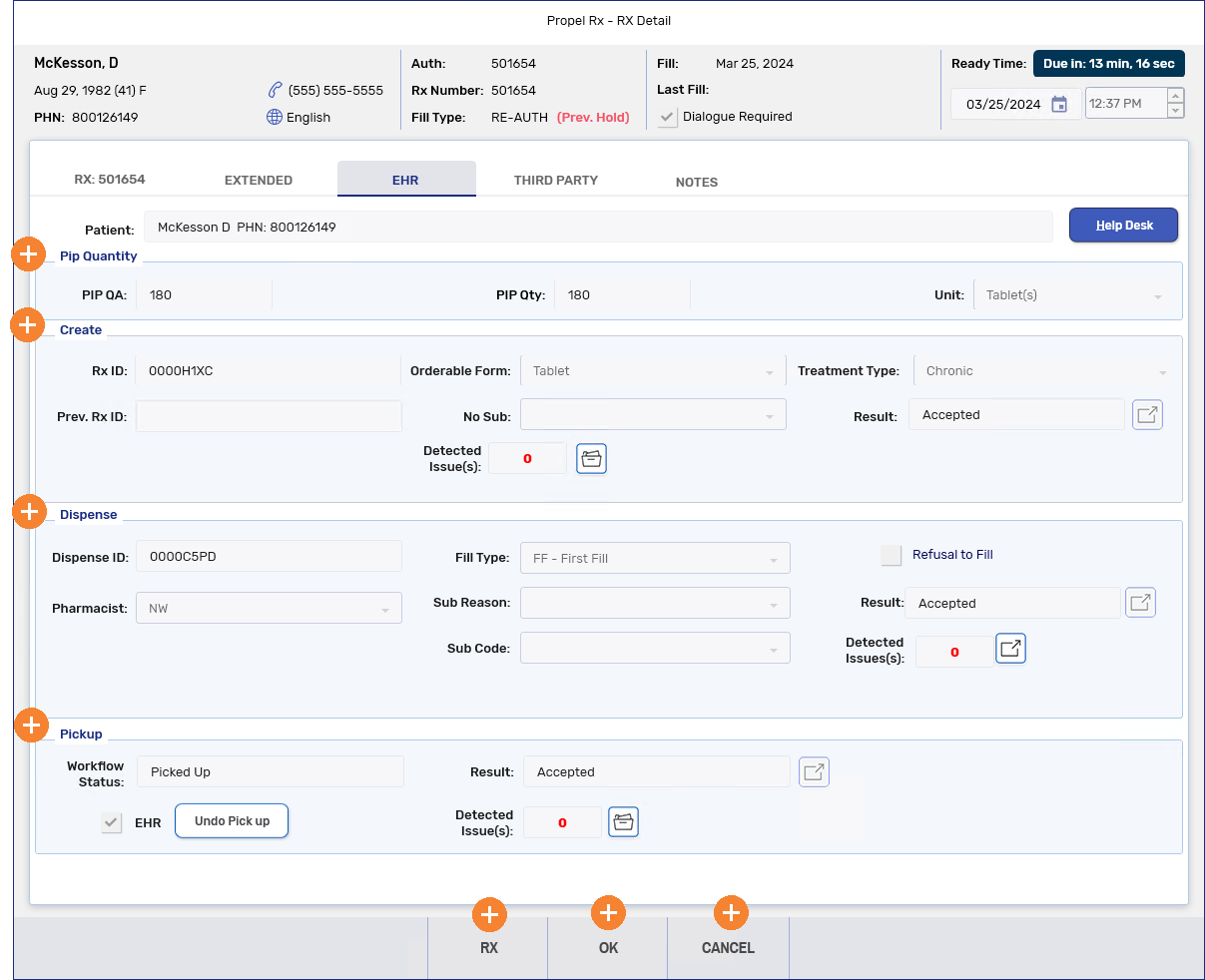
 Pip Quantity
This section displays the quantities and dosage form that were transmitted to the EHR. The PIP Unit for a refill or reauthorization is carried over from the previous fill. If the unit was not populated for the previous fill, a FDB mapping is used. The PIP Unit is optional for drugs or mixtures with an EHR Type of Device or Non-EHR or flagged as PFS.
Create
The Create transaction contains the Activate Prescription Request message. This message allows a prescriber to request the creation of a new prescription on a patient's EHR.
Pharmacies may submit Create requests for those prescriptions not entered into the EHR by the physician and that are not going to be dispensed immediately (i.e., placed on Hold). When a prescription is placed on Hold, Propel Rx will transmit the necessary Create message to the EHR. DUR will be performed.
Ideally, the physician would have created the prescription on the patient's EHR within their own EMR system and as a pharmacist, you will simply download the prescription into Propel Rx.
The following fields are displayed in this section:
-
Rx ID - the ID provided by the EHR.
-
Prev. Rx ID - the Rx ID of the previous authorization.
-
Orderable Form - identifies how the drug was ordered.
-
No Sub - indicates if substitution is not allowed (on downloaded prescriptions, the No Sub indicator is not carried over).
-
Treatment Type - identifies the prescription as Chronic, Acute, As Needed, or One time.
-
Result - the expander button
 is only enabled if the Create transaction failed.
 -
Detected Issue(s) - if there were any Detected Issues returned when a Create message was transmitted, they can be viewed by selecting the folder button
 beside the Detected Issues field.
Dispense
The Dispense transaction contains the Record Dispense Processing Request message. This message is used to indicate that the prescription has been dispensed. All refills will be referred to as dispenses and use this same message. The Rx ID obtained from the Create message can have one, many, or no dispenses against it. DUR is also performed when the prescription is dispensed.
For any new paper prescriptions, Propel Rx will send an inferred Create New Prescription Request and the Fill Drug Prescription Activate (or Dispense) message in order to complete the transaction and record the prescription on the patient's EHR.
The following fields display in this section:
-
Dispense ID - the ID provided by the EHR for the dispense.
-
Pharmacist - the pharmacist that will be submitted with the prescription.
-
Fill Type - indicates if this is a First Fill or Refill transaction.
-
Sub Reason - allows the pharmacist to choose one of the options below:
-
Continuing Therapy
-
Out of Stock
-
Formulary Policy
-
Regulatory Requirement
-
-
Sub Code - allows the pharmacist to choose one of the options below:
-
Formulary
-
Therapeutic
-
Generic
-
None
-
-
Refusal to Fill - allows the pharmacist to indicate that in their professional judgement, the prescription should not be filled. For more information, see Processing a Refusal to Fill.
-
Result - the expander button
only displays if the Dispense transaction failed. -
Detected Issue(s) - if there were any Detected Issues returned when the Dispense message was transmitted, they and any Issue Management codes entered can be viewed by selecting the expander button
beside the Detected Issues field.
Pickup
The Pickup transaction contains the Record Dispense Pickup Request message. This message is used to indicate that the dispensed prescription has been given to the patient, and this completes the prescription process. DUR can occur, but it is not necessary for the pharmacy to deal with the Detected Issues that occur with the pickup. The prescription on the patient's EHR will remain pending until it is flagged as Picked Up.
The following fields are displayed:
-
Workflow Status - indicates if the prescription has been picked up.
-
Result - the expander button only displays if the Pickup transaction failed.
-
Detected Issue(s) - if any Detected Issues were returned when the Pickup message was transmitted, they can be viewed by selecting the folder button
beside the Detected Issues field. -
Send Pick up - can be selected if the Pickup has not been successfully transmitted to the EHR. This button is renamed Undo Pick up if the Pickup has been transmitted to the EHR. You can select Undo Pick up to attempt a retraction of the Pickup if needed.